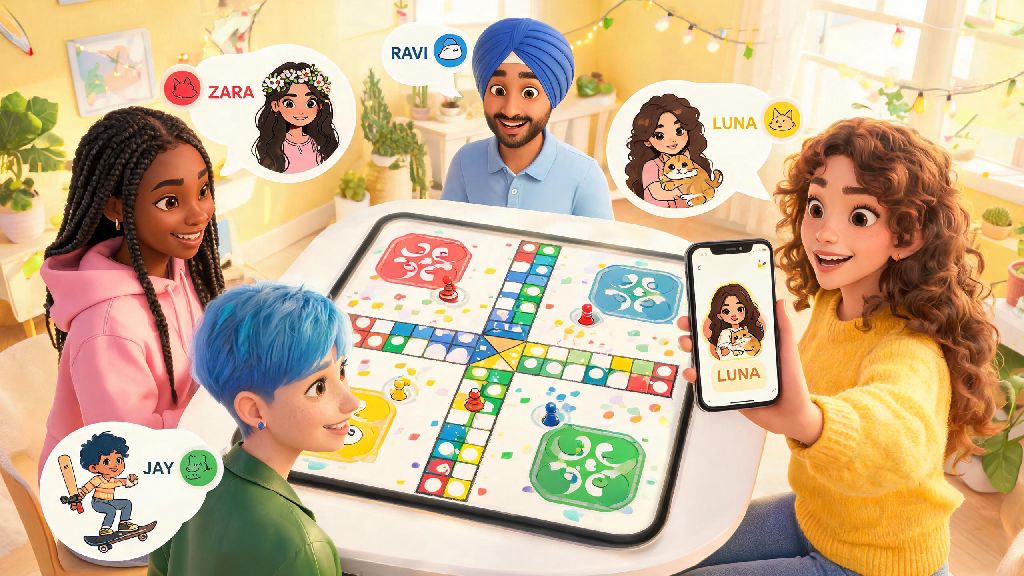
There’s nothing more confusing than joining a friend’s Ludo King room and seeing three identical default profile pictures staring back at you. You have to ask everyone to type their name in chat just to figure out who’s on which color, which wastes so much time before you can even roll the first die. Whether you’re playing casual matches with close friends or competing in high-stakes public tournaments, learning how to change profile picture in Ludo King is one of the easiest ways to make your account feel uniquely yours. It takes less than two minutes to do, and it saves so much hassle for you and everyone you play with long-term.
Step-by-Step Instructions to Change Profile Picture in Ludo King
The process works slightly different depending on what device you use and how you log into your account, but all versions follow the same basic flow. We’ve tested these steps across Android, iOS, and desktop versions of the game to make sure they work for every type of player. If you’re on a mobile device, start by opening the Ludo King app and waiting for the main menu to load fully.
For Android and iOS users, tap the small profile icon in the top left corner of the main screen. You’ll see a pencil-shaped edit icon right above your current profile picture – tap that to enter edit mode. Tap your current profile picture again, and you’ll get the option to take a new photo with your camera or select an existing image from your device’s gallery. Crop the image to fit the square frame, then tap save to confirm your new photo. Guest account users should note that any profile picture changes won’t sync to the cloud, so you’ll lose your custom avatar if you clear your app cache or switch devices.
If you play on the desktop version of Ludo King logged in with Facebook or Google, the process is almost identical. Click your profile icon on the main menu, select edit profile, then click your current avatar to upload a new image from your computer. You’ll need to wait 1-2 minutes after saving for the system to sync your new photo across all devices you use to play. If you log in with Facebook, you can also choose to sync your Facebook profile picture directly instead of uploading a separate image, if you prefer. Once you know how to change profile picture in Ludo King, you can update it as often as you want for holidays, special events, or just when you feel like a change.
Common Ludo King Profile Picture Upload Issues (And Quick Fixes)
It’s not unusual to run into small snags when you try to update your profile photo, especially if you’re using an older version of the app. I’ve seen dozens of new players get frustrated when their profile photo won’t save, only to realize they were logged into a guest account instead of their linked Google profile. Most issues have super simple fixes that take less than a minute to try.
The most common problem is the save button being grayed out when you try to confirm your new photo. This almost always happens because your image file is too large, or it’s in an unsupported format. The ideal profile picture size for Ludo King is a 400x400 pixel square JPG or PNG file under 1MB. If your image is bigger than that, crop it or compress it using a free photo editing tool before you upload it, and the save button should start working again.
Another common issue is your profile picture switching back to the default avatar a few hours after you change it. This usually means you didn’t save the change properly, or you’re not logged into your registered account. If your photo keeps reverting, first double check that you’re logged into your linked Google, Apple, or Facebook account instead of playing as a guest. If you are logged in, try closing and restarting the app, then upload the photo again. If the problem persists, make sure you have the latest version of Ludo King installed from your app store.
Tips to Pick a Ludo King Profile Picture That Stands Out
Your profile picture shows up everywhere in the game: in match lobbies, on the leaderboard, in club chat, and next to your username in tournament results. Picking the right image makes it easy for your friends to spot you quickly, and helps you build a recognizable identity if you play a lot of public matches. Here are our top tips to pick a great avatar that works well for the game’s format:
You don’t have to use a photo of your real face if you don’t want to. A lot of regular players use avatars related to their favorite color, lucky charm, or even a meme that makes them laugh. Ludo King has strict content policies for profile photos, so avoid any violent, discriminatory, or explicit content to avoid temporary or permanent account bans. If your photo gets removed, you’ll get an in-game notification explaining why, and you can upload a new compliant image to restore your custom profile.
Extra Perks of Customizing Your Ludo King Profile
Changing your profile picture is just the first step to making your Ludo King account feel personal, and it unlocks a few small perks you might not expect. For one, if you join any Ludo King clubs, other members are far more likely to engage with you if you have a custom avatar instead of the default grey silhouette. People associate custom profiles with active, regular players, so you’ll get invited to more private matches and club events too.
Custom avatars also make the game feel more fun for everyone you play with. I play a weekly match with my college friends, and we all have silly profile pictures related to an inside joke we’ve had for years. It makes every match feel more casual and fun, even when someone’s winning by a huge margin. You never have to use your real face as your Ludo King profile picture if you prefer to keep your gaming identity private. There’s no rule requiring you to share personal information, so you can pick any appropriate image that feels like you.
If you ever decide to stream your Ludo King gameplay or post clips on social media, a consistent custom profile picture helps your viewers recognize you across platforms. A lot of small Ludo King creators use the same avatar in the game and on their social channels to build their brand, and it makes it easy for fans to find and play with them during public streams. You can even switch up your avatar to match special in-game events, like holiday themes or limited-time tournament modes, to feel more involved in the game’s community.
Now that you know how to change profile picture in Ludo King, you can take a minute to update your account today to match your personal style. It’s such a small change, but it makes a huge difference in how you experience the game, whether you play once a week with family or spend hours grinding tournament ranks every day. If you run into any issues with your upload, just try the quick fixes we shared earlier, and you’ll have your new avatar up and running in no time.