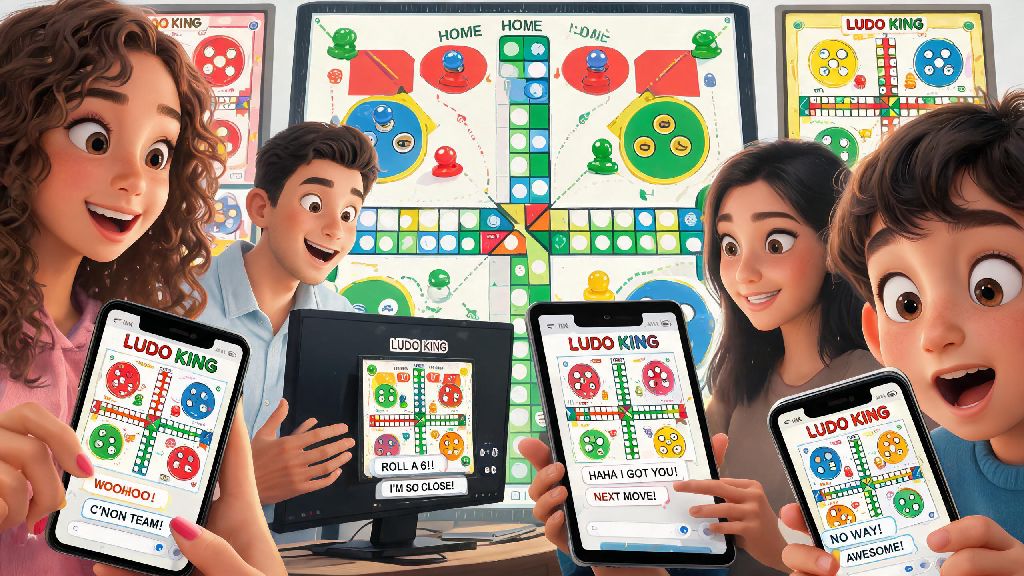
If you’ve ever sat through a tense Ludo King match where you wanted to tease your friend for landing on your token or congratulate a random opponent for a great roll, you’ve probably wondered how to chat in Ludo King without pausing the game or switching apps. The chat feature is one of the most underrated parts of the game, turning a simple board game match into a fun social hangout even when you can’t meet up in person. I’ve spent months testing every chat option across Android, iOS, and desktop versions of the game, so I’ve put together all the tips you need to communicate smoothly no matter who you’re playing with.
How to Chat in Ludo King: Step-by-Step for All Game Modes
The process for accessing chat varies slightly based on the type of match you’re playing, but the core steps are the same across all devices. First, load into any active match, whether it’s a 2-player quick play game or a 4-player private room with your family. Look for the small speech bubble icon, usually located at the bottom right of your screen for mobile users, or the top right for desktop players. You won’t see the chat icon at all if you have chat disabled in your account preferences, so double check that setting first if you don’t see the icon right away. Tap the icon to open the chat panel, and you’ll see all available messaging options for your current match. If you’re playing on desktop, the process for how to chat in Ludo King is almost identical: the chat icon is located at the top right of the game window instead of the bottom right, but all the same features apply. If you still can’t figure out how to chat in Ludo King after checking these settings, you can reach out to the Ludo King support team through the help menu, and they’ll walk you through troubleshooting steps specific to your device.
Types of In-Game Chat Options You Can Use
Ludo King offers different chat tools for different use cases, so you can pick the one that fits the vibe of your match. Most players don’t realize there are three distinct chat categories available, depending on who you’re playing with:
I prefer using emojis for public matches most of the time, because they’re less likely to be misinterpreted than pre-written messages. For example, sending a laughing emoji after someone lands on your token feels a lot friendlier than sending a generic “Oops!” message, which some players might read as passive aggressive. That said, pre-written messages are a lifesaver if you’re playing on a smaller phone screen and don’t have time to type out a full reaction.
Common Ludo King Chat Issues and How to Fix Them
Even if you follow all the steps correctly, you might run into chat glitches or restrictions that stop you from sending messages. I’ve dealt with almost all of these issues myself over hundreds of matches, so these fixes work for 99% of cases. First, if you can’t see the chat icon at all, head to your account settings page and make sure the “Enable In-Game Chat” toggle is switched on. Many new players turn this off by accident when they first set up their account, and never realize they’re missing the feature. If you can see the icon but can’t send custom messages in a public match, that’s not a glitch: custom text is disabled for all random public matches to cut down on harassment and spam. There’s no way around this rule, so don’t waste time looking for hacks to unlock it, because you’ll just end up getting your account flagged. Another common issue is messages not sending even in private matches. That’s almost always a bad internet connection, so try switching from mobile data to Wi-Fi, or closing and reopening the app if you’re on a stable connection already. If one of your friends can’t see your messages, ask them to check their own chat settings too: they might have chat turned off for their account, or they might have accidentally muted your chat in the match.
Etiquette Tips for Ludo King Chat to Avoid Getting Reported
Chat is a fun feature, but it’s important to use it responsibly, especially in public matches with players you don’t know. The Ludo King moderation team reviews all reports of inappropriate chat, and you can get a temporary or permanent ban from chat if you violate their community guidelines. First, never send abusive, discriminatory, or spam messages in any match, even if you’re frustrated about losing. It’s just a game, and taking out your anger on other players ruins the experience for everyone. For public matches, stick to friendly pre-written messages and emojis unless the other player starts a casual, friendly chat first. Don’t send unsolicited personal information, like your phone number or social media handles, to random players, and don’t ask other players for their personal information either. If you’re playing with a group of friends and teasing each other, make sure everyone is comfortable with the jokes before you go too far. I’ve seen friend groups fall out over silly Ludo King chat jokes that crossed a line, so it’s always better to check first if you’re not sure. If you encounter a player sending inappropriate messages, you can mute their chat with one tap on the chat panel, or report them directly to the moderation team through the match menu. You don’t have to put up with toxic behavior to enjoy the game.
At the end of the day, the chat feature is what turns a casual game of Ludo King into a fun social activity, whether you’re playing with old friends or making new ones. Learning how to chat in Ludo King properly helps you get more out of every match, without running into glitches or accidentally offending other players. Next time you load up a match, try experimenting with emojis or pre-written messages first, then move to custom chat if you’re in a private room with people you know. You might be surprised how much more fun the game feels when you can react to every roll in real time.