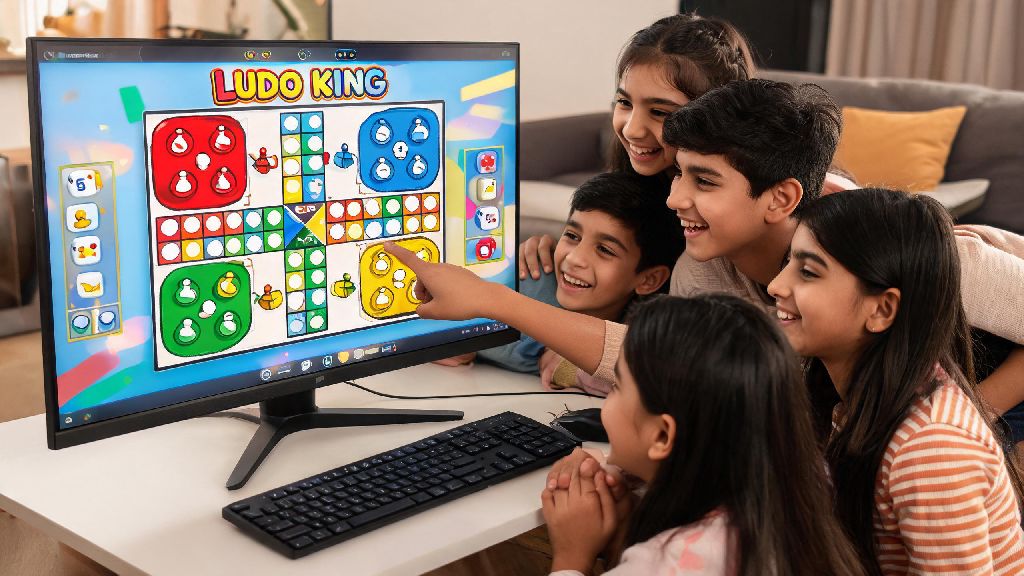
I’ve been playing Ludo King for 4 years with my cousins who live across the country, and switching to PC cut my frustration with small touchscreen misclicks in half. If you’re tired of squinting at your phone screen while trying to land that perfect hit on a friend’s token, you’re far from alone. Millions of casual gamers look for how to download Ludo King in PC every month, eager to enjoy the iconic board game on a bigger display, with better controls, and no risk of your phone dying mid-match. We’ve tested every common method to get the game running on Windows and Mac devices, so we can walk you through the safest, most reliable options that don’t come with hidden malware or annoying paywalls.
Official, Safe Methods to Download Ludo King in PC
There are only two trusted, official ways to get Ludo King running on your PC, and both are completely free to use. The first option is the native Windows app available directly through the Microsoft Store, which is the best pick for anyone running Windows 10 or later. The second option uses a trusted Android emulator, which works for both Windows and Mac devices, and is ideal if you want access to the exact same version of the game you use on your phone.
Before you start any download, there are a few quick checks you should do to avoid accidentally installing harmful software:
Never download files from sites that require you to complete surveys first, as these almost always lead to malware or unwanted adware being installed on your device. The native Windows version is the simplest option for most users, as it installs in one click and doesn’t require any extra software. The native Windows version uses less system resources than emulator versions, so it’s a better fit for older or lower-powered laptops.
Step-by-Step Setup for First-Time PC Players
Setting up Ludo King on PC takes less than 10 minutes, even if you’re not particularly tech-savvy. For Windows users, just open the Microsoft Store app on your device, search for Ludo King, and click the “Get” button to start the installation. Once it’s done, you can open the game directly from your start menu, no extra steps required.
For Mac users, you’ll first need to install a trusted Android emulator like BlueStacks or Nox Player. Download the installer from the emulator’s official site, run it, and follow the on-screen prompts to set up the software. Once the emulator is running, sign in with your Google account to access the Google Play Store, then search for Ludo King and install it just like you would on your phone.
When you first open the game on PC, you’ll be asked to sign in to your account. Syncing your account means you won’t lose all your existing coins and level progress, so make sure you sign in with the same Facebook or Google ID you use on your mobile version of the game. If you don’t want to sync, you can also play as a guest, but you won’t be able to carry over any progress between devices.
Tips to Optimize Ludo King Gameplay on PC
Once the game is installed, there are a few small tweaks you can make to get the best possible experience. First, go to the in-game settings and switch to full screen mode to make the board as large as possible, which makes it much easier to see all the tokens and avoid misclicks. If you prefer using keyboard controls instead of mouse clicks, most emulator versions let you map taps to specific keys for even faster gameplay.
A lot of players like to take short breaks between intense multiplayer ludo matches to reset their focus, especially if they’ve just lost a few close rounds. Casual, quick-play games are perfect for these 5 to 10 minute gaps, as they don’t require you to invest too much attention or commit to a long match. Many casual players we’ve spoken to enjoy playing Jaiho Spin during these short breaks, as it’s light, fun, and easy to pick up and put down whenever you’re ready to jump back into your next Ludo King match.
If you’re running the game on an emulator, you can allocate more RAM to the emulator in its settings to reduce lag and make the game run smoother. Turning off in-game sound effects if you’re streaming or working in the background can also help reduce unnecessary system usage, and you can keep only the music on if you want some background ambiance. Cross-platform play is enabled by default on most PC versions, so you don’t have to do any extra work to play with friends who are still using the mobile version of the game.
Common Issues You Might Face After Installation (and Fixes)
Even with official installations, you might run into a few small issues when you first start playing Ludo King on PC. The most common issue is login errors, which usually happen if your internet connection is unstable, or if you’re running an outdated version of the game. To fix this, first check that your Wi-Fi or ethernet connection is working properly, then go to the store you downloaded the game from to install any available updates.
If you’re using an emulator and experiencing consistent lag, try closing any other heavy apps that are running in the background, like video editors or streaming software. You can also go into the emulator settings and increase the amount of RAM and CPU cores allocated to the software, which will make the game run much smoother. Just don’t allocate more than 50% of your total system resources to the emulator, or you’ll cause lag for other apps on your device.
Another common issue is progress not syncing between your mobile and PC versions of the game. This almost always happens if you’re logged in with different accounts on each device, or if one of the versions is outdated. Double check that you’re using the same Google or Facebook ID on both, and make sure both versions are updated to the latest available build. If you still have issues, you can reach out to the official Ludo King support team through the in-game help center for further assistance.
Whether you’re playing for fun with family or competing in ranked matches against strangers, switching to a PC setup makes every Ludo King session far more enjoyable. Now that you know how to download Ludo King in PC without unnecessary risks or complicated steps, you can get set up in less than 10 minutes and jump straight into your first match. Don’t forget to sync your existing account first to carry over all your hard-earned rewards, and adjust your settings to match your play style for the best possible experience.