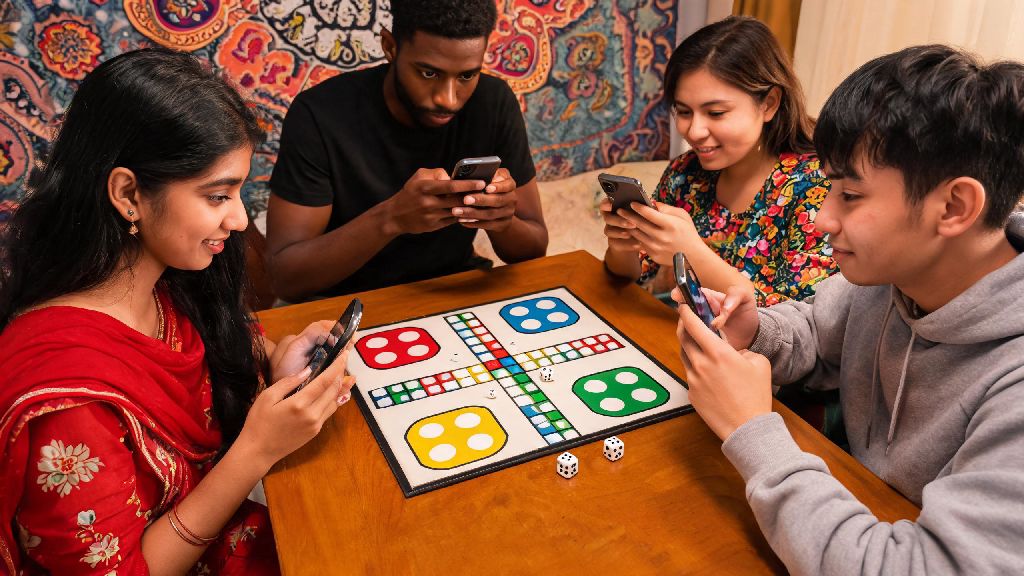
If you’ve ever gotten bored playing Ludo King against the AI and wished you could test your dice luck against real people, you’re not alone. I’ve spent hours messing around with the game’s different multiplayer modes after my cousin kept bragging he could beat me every round, and I’ve got all the details you need to jump into matches with friends, family, or random players from across the world. Wondering how to play multiplayer in Ludo King without running into annoying setup issues? This guide breaks down every mode, common pitfalls, and extra tricks to make your sessions run smoothly.
How to Play Multiplayer in Ludo King: All Available Modes Explained
Ludo King has three core multiplayer modes to fit every situation, and before you jump in, you’ll need to check a few basic boxes to avoid errors. I’ve had enough failed match attempts to know these pre-checks save you a lot of frustration later:
Once you’ve got those sorted, you can pick the mode that fits your needs. Online Random Matches are the fastest to join, perfect if you just want to play a quick game without coordinating with other people. You get paired with 1-3 random players from anywhere in the world, and you can pick 2, 3, or 4 player lobbies. You can’t chat with random players unless you use the pre-set quick messages, which is a nice safety feature for younger players, and you’ll earn in-game coins for every win just like you do against AI.
Private Room Matches are the most popular mode for playing with people you know. You create a room, get a unique 4-digit code, and share it with up to 3 other people to join. You can customize rules here, like turning off snake bites, enabling double rolls for sixes, or setting a higher bet for in-game coins. I use this mode for weekly game nights with my high school friends who live across the country, and it’s almost as good as playing in person.
Local Pass-and-Play is the no-internet option, perfect if you’re in the same room as friends or family and don’t want to waste data. All players take turns passing the same device around, no account needed, and you still get access to most custom rule settings. I’ve used this mode at family dinners when the Wi-Fi cuts out, and it’s just as fun as the online versions, even if it leads to a lot of playful arguments over who rolled the dice wrong.
Step-by-Step Walkthrough for Setting Up a Private Multiplayer Lobby
Most people looking for multiplayer modes want to play with people they know, so setting up a private room is usually the first thing they try. I’ve seen a lot of new players get stuck here because they miss a small step, so follow this process to avoid issues. First, open Ludo King and tap the “Play with Friends” button on the main home screen, it’s hard to miss, right next to the “Play Online” button.
Next, pick if you want to play a 2, 3, or 4 player match, and select your preferred rule set. You can toggle things like double rolls on sixes, safe spots for your tokens, or quick match mode that cuts game time in half here. Don’t overthink these settings, you can adjust them later if everyone in the lobby wants a different rule set.
Then, tap “Create Room” and wait a few seconds for the game to generate your unique 4-digit entry code. Share that code with the people you want to play with, and wait for them to enter the code on their own devices to join the lobby. You’ll see their profile pop up in the lobby as soon as they join, and you can kick players if someone you don’t know accidentally joins with the right code.
Once everyone is in, tap “Start” to begin the match. If someone can’t join your room, make sure they’re running the same version of Ludo King as you, and that they entered the code correctly, without extra spaces. A common mistake I see is people mixing up numbers like 0 and O, but the game only uses numbers for room codes, so that’s an easy fix.
Common Multiplayer Issues and How to Fix Them Fast
Even if you follow all the steps correctly, you might run into small issues when playing multiplayer Ludo King, especially if you’re on a spotty internet connection. The most common issue is sudden disconnections mid-match. If this happens to you, don’t close the app right away. Tap the “Rejoin” button that pops up within 30 seconds, and you’ll get back into the match right where you left off, as long as your internet is back.
If you wait longer than 30 seconds, the game will mark you as absent and replace you with an AI player, so you’ll lose any coins you bet on the match. If you keep getting disconnected, try switching from mobile data to Wi-Fi, or move closer to your router, as Ludo King needs a consistent connection to run smoothly even if it doesn’t use a lot of data.
Another common problem is not being able to find your friends on the friend list. If you linked your account to Facebook but don’t see your friends, make sure they also linked their Ludo King account to the same platform, and that they have their game privacy settings set to allow friend requests. You can also just send them the private room code directly if you don’t want to mess with friend list settings, which is usually faster anyway.
If you’re playing pass-and-play and the game keeps registering wrong taps, make sure you lock your screen rotation before you start passing the device around, that stops accidental taps from moving tokens when you don’t want them to. You can also turn on the “confirm move” setting in the game menu to make sure no one makes a wrong move by accident.
Pro Tips to Make Your Multiplayer Ludo King Matches More Fun
Once you’ve got the hang of setting up multiplayer matches, there are little tweaks you can make to turn casual games into more exciting sessions, or make long matches move faster. First, use the custom rule settings to mix up gameplay. If you’re playing with new players, turn off snake bites to make the game more forgiving, or turn on “six on first roll” so everyone can get their first token out right away without waiting for a six.
If you’re playing with competitive friends, turn up the coin bet limit to add a little friendly stake to the match. I’ve played games where the loser has to buy the next round of snacks for the group, and it makes every roll way more tense and fun. You can also use the in-game voice chat feature for private rooms to trash talk or cheer each other on, just make sure everyone has their mic turned on in the game settings.
Another tip: If you’re playing with younger kids, switch to the quick match mode that cuts the board size in half, so matches only last 10-15 minutes instead of 30+ minutes. I’ve done this for my niece’s birthday parties, and it keeps all the kids engaged without them getting bored halfway through. You can also turn off coin bets for kid matches so no one gets upset about losing their in-game currency.
Don’t forget to use the in-game emotes and quick messages if you’re playing with random players, it’s a fun way to interact without sharing personal information. You can send a laugh emote when someone gets sent back to start by a snake, or a congratulations message when someone wins, it makes the whole experience feel more friendly.
At the end of the day, figuring out how to play multiplayer in Ludo King is way easier than most new players think, and it’s the best way to get more enjoyment out of the classic board game. Whether you’re killing time with random players online, setting up a tournament with your college friends, or playing pass-and-play with your family on a road trip, there’s a multiplayer mode that fits every situation. Don’t stress if you run into small setup issues at first, most of them have super simple fixes that take less than a minute to sort out. Next time you’re looking for a low-effort, fun group activity, pull up Ludo King and start a multiplayer match, you won’t regret it.