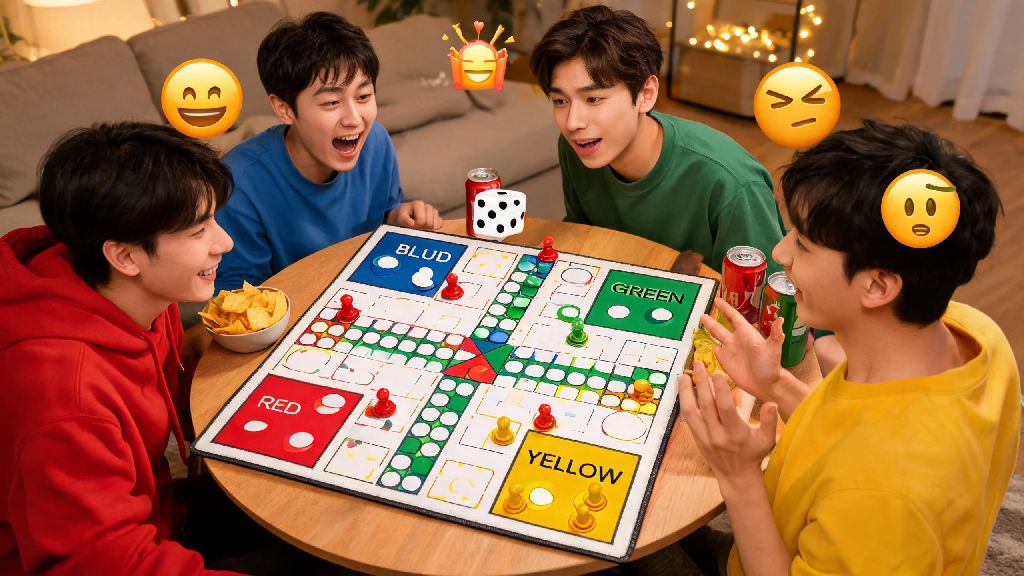
If you’ve ever sat through a tense Ludo King match where your friend just cut your token right before you reached the finish line, you know how badly you want to react in the moment. Knowing how to send emoji in Ludo King turns ordinary matches into lively, social experiences, whether you’re playing with people you know or random opponents from across the world. A lot of new players miss this feature entirely when they first download the game, but it’s far simpler to use than most people think. This guide covers every part of the feature, from basic sends to custom packs, troubleshooting, and even unwritten rules for using emojis politely.
How to Send Emoji in Ludo King During Standard Multiplayer Matches
The process for sending emojis during a live match is nearly identical across mobile and desktop versions of the game, so you won’t have to learn a new system if you switch devices. First, load into any multiplayer match, whether it’s a 2-player, 4-player, or team game. Look for the small circular smiley face icon tucked in the bottom right corner of your game screen, right next to the chat text box. Tap or click that icon to pull up your quick access emoji panel.
You’ll see a grid of 8 emojis in the default panel, ranging from laughing faces to frustrated reactions, plus a special dice emoji for when you’re begging the game to give you a 6. Tap any emoji you want to send, and it will pop up over your player avatar for 3 seconds for everyone in the match to see. You can only send 1 emoji every 10 seconds, a rule the game added to prevent players from spamming reactions and distracting other people mid-match.
If you’re playing a private match with friends, you can also hold down an emoji to drag it and place it directly over a specific player’s token, for extra targeted teasing or celebration. That feature doesn’t work in public random matches, though, to cut down on harassment.
Customizing Your Ludo King Emoji Pack for Personalized Reactions
The default emoji pack is fine for casual play, but if you want to show off your personality, you can swap out the default options for custom emojis you unlock through gameplay. New emojis become available as you level up your account, complete daily login challenges, or earn enough in-game coins to buy packs from the in-game store. Some special emojis even have small animations, like a confetti explosion for the celebration emoji, that make them stand out more in matches.
Rare event-exclusive emojis drop only during limited-time holiday runs or brand collaboration events, so check the in-game news tab at least once a week to see if new packs are available. A lot of mobile casual game players like to switch between quick matches of different titles between longer Ludo King sessions to keep things fresh. For example, many players who collect limited-edition in-game cosmetics also play Rummy77 to unlock unique avatar frames and reaction stickers they can show off across their connected casual game accounts.
To edit your quick access emoji panel, go to your player profile from the main menu, and tap the “emoji collection” tab under your avatar. You’ll see all the emojis you’ve unlocked sorted by rarity. Tap up to 8 emojis to add them to your quick access bar, then save your changes. The new pack will automatically load the next time you join a match, so you don’t have to adjust settings every time you play.
Troubleshooting Common Issues When Sending Ludo King Emojis
It’s not uncommon for emojis to fail to send every once in a while, especially if you’re playing on a spotty internet connection. Most issues are easy to fix in under a minute, no technical knowledge required. If you can’t send emojis, work through this list of common fixes first:
If you’ve checked all these fixes and emojis still won’t send, try closing the app completely and reopening it. That clears small temporary glitches that cause the feature to break, and it works for 90% of remaining issues. You won’t need to reinstall the game or contact support unless the problem lasts for more than 24 hours.
Etiquette Tips for Using Emojis in Ludo King Public Matches
Emojis are meant to make matches more fun, not to make other players feel bad or harassed. There’s an unwritten set of rules for using reactions in public matches that most long-time players follow, and sticking to them will make your experience way more positive.
Never send angry or mocking emojis after cutting another player’s token if you’re playing with randoms. It’s a normal part of the game, but rubbing it in with repeated angry or laughing emojis is considered rude, and you can get reported and temporarily muted for it. If you’re playing with close friends, of course, you can tease each other as much as you want, as long as everyone is on the same page.
Avoid spamming emojis during tense moments too, like when a player is one roll away from winning the match. A lot of people focus hard during those final turns, and repeated pop-up emojis can be distracting enough to make them misclick or miss their roll. Save celebrations for after the match is over, or send one small positive emoji if they pull off the win.
On the positive side, sending friendly emojis like a happy face when someone gets a lucky 6 or a sympathetic sad face when they roll a 1 right before the finish line makes matches feel way more welcoming. Most players will send positive reactions right back, turning a random anonymous match into a fun, friendly interaction.
You can also turn off emoji reception entirely in your settings if you don’t want to see reactions from other players at all. That’s a good option if you’re playing to grind ranked matches and don’t want any distractions, or if you’ve dealt with harassment in public matches before.
Now that you know how to send emoji in Ludo King, you can make every match feel more personal and lively, whether you’re playing for 10 minutes on your commute or for hours at a game night with friends. Take a few minutes to browse your emoji collection and customize your quick access pack to match your personality, and always remember to keep reactions light and respectful when you’re playing with people you don’t know. Even a small, silly emoji can turn a boring casual match into a memorable one that makes you want to come back for more.