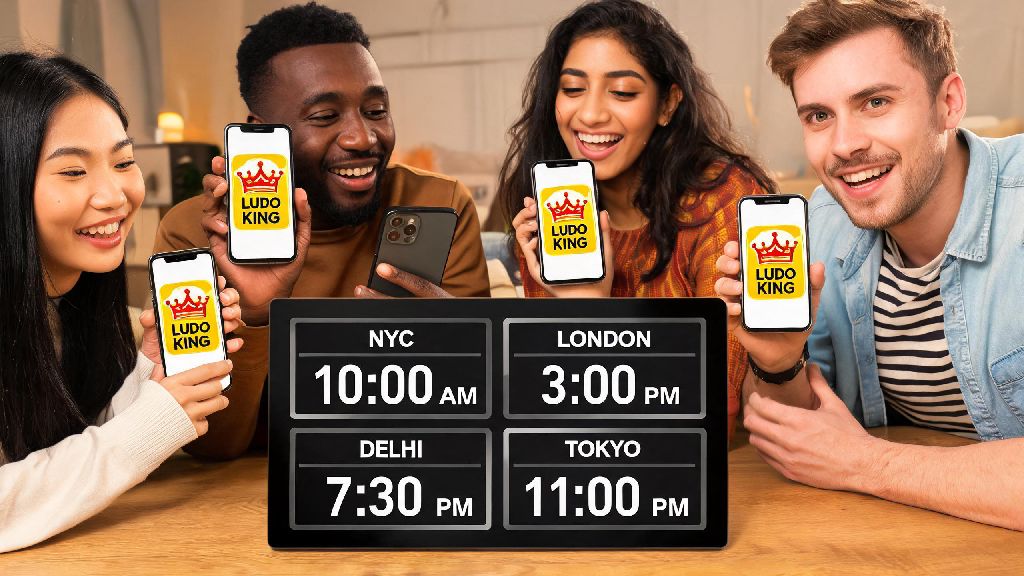
If you’re looking for a low-effort, fun way to stay connected with pals across cities or even countries in 2026, Ludo King is still one of the best options out there. I play weekly matches with my high school friend group spread across 4 different time zones, and we’ve tried every possible way to set up games without glitches. If you want to skip the frustrating trial and error we went through, this guide breaks down exactly how to play Ludo King online with Facebook friends, with all the latest updates for the 2026 version of the app.
Pre-Requisites to Play Ludo King Online With Facebook Friends in 2026
Before you jump into setting up a match, there are a few basic things you need to check off to avoid running into issues halfway through. First, make sure you have the 2026 Ludo King app update (version 7.2 or higher) installed on your device. The 2026 update fixed long-standing bugs with Facebook sync and cross-region play, so older versions won’t connect properly anymore. You also need an active public Facebook profile (private profiles won’t show up in friend searches), and any friends you invite need to have their own Ludo King accounts linked to Facebook too. Finally, make sure everyone has a stable internet connection – mobile data works fine, but public Wi-Fi often causes dropouts mid-match.
Step-by-Step Process to Connect and Play With Your Facebook Friends
Once you’ve checked all the pre-requisites, setting up a match takes less than 2 minutes if you follow these steps. First, open your Ludo King app and tap the “Multiplayer” tab on the bottom navigation bar. Next, select the “Facebook Friends” option from the list of multiplayer modes – you’ll be prompted to log in to your Facebook account if you haven’t already. Make sure you tap “Allow” when the app asks for permission to access your friend list, otherwise you won’t be able to see any of your contacts. Once your friend list syncs, select up to 3 people you want to invite, set your match rules (turn time, number of rounds, coin bet amount if you want to play for in-game currency), and send the invites. You can invite up to 3 Facebook friends per private match, for a total of 4 players including you. If you run into login or sync issues while following these steps, you can check the official 2026 Ludo King support page for up-to-date fixes for known bugs. A lot of people skip over small steps that cause big headaches later, so here are the most common mistakes we’ve seen people make in 2026:
If you avoid these three mistakes, 90% of common setup issues will be off the table before you even start your match.
Top 2026 Tips for a Smooth Facebook Friend Ludo King Experience
Once you’ve got the basic setup down, there are a bunch of small tweaks you can make to your games to make them more fun and less frustrating. First, turn on push notifications for Ludo King so you never miss a match invite from your Facebook friends. Most of my friend group works 9-5 jobs, so we send invites when we’re free, and push notifications mean no one misses out because they didn’t check the app. You can also create a custom Ludo King group for your regular Facebook friend crew – this lets you send one group invite instead of messaging each person individually, and you can see everyone’s availability at a glance. If you’re playing with people who hate slow turns, set the turn timer to 30 seconds instead of the default 60, it keeps the game moving quickly. One of my favorite 2026 updates is the ability to replace a dropped-out player with another Facebook friend mid-match, so if someone has to leave suddenly for a work call, you don’t have to abandon the entire game. The only real downside to linking your Facebook account is that your friends can see your win rate and match history by default. If you don’t want people to know you’ve lost 12 matches in a row this week, you can toggle that setting off in the Ludo King privacy menu.
Troubleshooting Common 2026 Facebook Connection Issues for Ludo King
Even if you follow all the steps perfectly, you might run into the odd issue now and then, especially if you or your friends use older devices. The most common problem people report is that their Facebook friends don’t show up in the Ludo King friend list, even when both people have linked their accounts. The fastest fix for this is to log out of both Ludo King and Facebook, restart your device, then log back in and re-sync your accounts. If that doesn’t work, remove Ludo King access from your Facebook app settings and re-link it again if your friends still don’t appear after re-logging. This resets all the permission settings, which usually fixes any sync glitches. Another common issue is invites not being delivered to your friends. This almost always happens when one of you has push notifications turned off for Ludo King, so just shoot them a quick Facebook message to let them know you sent an invite. Before 2026, a lot of people also ran into region lock issues where they couldn’t play with friends in other countries, but the 2026 update removed all region restrictions for private Facebook friend matches, so you don’t have to worry about that anymore.
At the end of the day, Ludo King is such a popular casual game for a reason – it’s simple, nostalgic, and a perfect way to catch up with people you care about without the pressure of long phone calls. Once you get the hang of the setup steps we covered, you’ll be able to set up and play Ludo King online with Facebook friends in minutes, no tech expertise required. We’ve been using these exact steps for our weekly group matches for months, and we barely run into any issues these days. If you have any other tricks for making Facebook friend matches more fun, drop them in the comments below!