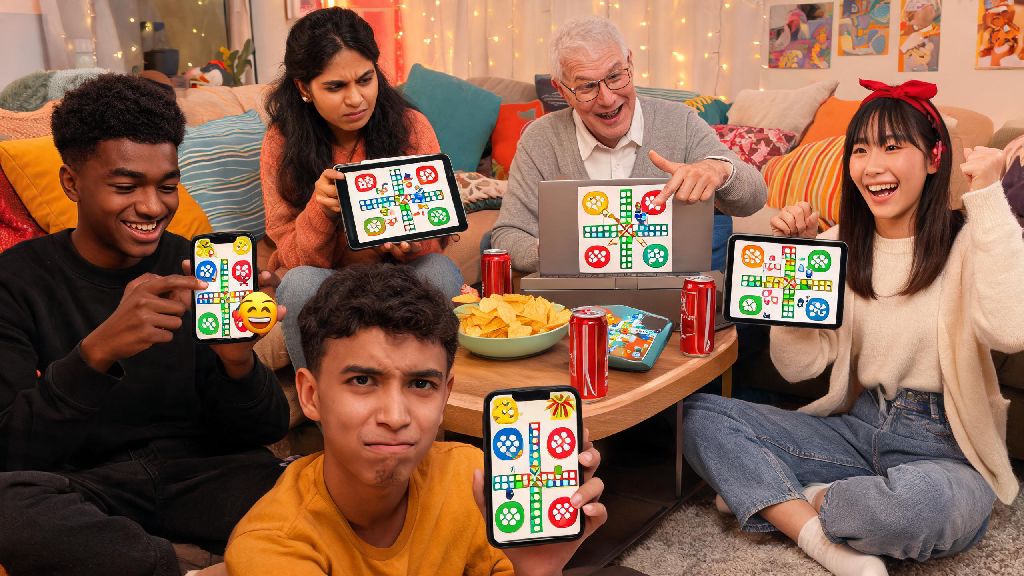
If you’ve ever sat through a tense Ludo King match, watching an opponent land on your piece that was one step away from finishing, you’ve probably wanted to send a quick reaction to let them know exactly how you feel. But if you don’t know how to send emoji on Ludo King, that frustration can feel even worse, or you might miss the chance to celebrate a lucky six roll with your friends. Emojis are one of the small, underrated features that turn a basic digital board game into a fun social experience, whether you’re playing with random strangers online or your childhood friends in a private room. Most players skip over the emoji feature entirely because they don’t realize how easy it is to use, but it adds a whole new layer of fun to every match.
Step-by-Step Instructions to Send Emoji on Ludo King
The process to send emojis is almost identical across iOS, Android, and desktop web versions of Ludo King, so you won’t have to learn new steps if you switch devices. First, make sure you’re in an active, ongoing match – you can’t send emojis in the main lobby, friend request screen, or tournament sign-up pages. Tap the smiley face icon at the bottom right of the gameplay screen to pull up the full emoji menu. You’ll see all available emojis laid out in a grid, and you just have to tap the one you want to send to have it pop up above your player profile for all other users in the match to see. If you’re playing on the desktop web version, you’ll find the same smiley icon in the same bottom right position, and you can click it with your mouse to select and send an emoji. Once you follow these steps, you’ll know how to send emoji on Ludo King in any match type, from random public lobbies to private rooms with your closest friends. The only difference between free and premium users is the range of emojis available, not the process to send them.
What Emojis Are Available on Ludo King, and When to Use Them
Ludo King has a curated set of emojis specifically designed for board game reactions, so you won’t have to scroll through hundreds of irrelevant emojis to find the one you want. Free users get access to 12 core emojis by default, while premium Ludo King members get access to 30+ custom animated emojis and exclusive holiday-themed reactions. You don’t need premium emojis to have fun, though – the basic set covers every common gameplay emotion you’ll feel during a match. Here are the most common emojis and the best times to use them:
One important rule to remember: you can only send one emoji every 10 seconds to prevent players from spamming reactions and distracting other people in the match. If you try to send multiple emojis in a row, you’ll get a small pop-up notification telling you to wait a few seconds before sending another.
Common Issues When Sending Ludo King Emojis (and How to Fix Them)
Most players never run into issues with Ludo King’s emoji feature, but if you’re running into problems while trying to figure out how to send emoji on Ludo King, these quick fixes will resolve 99% of common glitches. The most common issue is the smiley face icon missing entirely from your gameplay screen. Outdated app versions are the #1 cause of missing emoji features, so head to the App Store or Google Play Store to check if you have the latest version of Ludo King installed. If you’re already on the latest version, check the match settings: if you’re in a private room, the host may have disabled emojis and chat entirely to keep the match focused, especially for tournament play. If you can send emojis but no one else can see them, or you can’t see other people’s emojis, check your privacy settings. Open the settings menu from the main lobby, tap the privacy tab, and make sure the “show emojis from other players” toggle is switched on. If you’re playing on mobile data instead of Wi-Fi, a weak internet connection can also delay or block emojis from sending, so try switching to a more stable connection if your reactions aren’t going through. None of these fixes work? Try closing the app entirely and restarting it, or clearing your cache if you’re on Android – that usually resolves any temporary glitches with social features.
Creative Ways to Use Ludo King Emojis to Make Matches More Fun
Once you get the hang of sending basic reactions, you can get creative with emojis to make every match feel more personal and fun. If you play regularly with the same group of friends, you can create silly inside joke codes with emojis – for example, my friend group sends a pizza emoji when we want to pause the match to grab a snack, or a thumbs up when we’re ready to start the next round. If you’re playing in public lobbies, sticking to positive or neutral emojis is always a good call, since you don’t know how strangers will react to teasing. Toxic behavior including excessive negative emoji spamming can lead to temporary account bans, so avoid sending repeated angry or insulting emojis even if you’re losing badly. If you stream your Ludo King gameplay on TikTok or Twitch, reacting with emojis during tense moments makes your content way more engaging for viewers, and you can even ask your chat to vote on which emoji you send after every big play. You can also use emojis to be a good sport: send a crown emoji to the winner of every match, or a folded hands emoji if you get lucky and take out their leading piece. Small, friendly reactions make the game more fun for everyone involved, not just you.
At the end of the day, Ludo King is supposed to be a fun social game, not just a competitive board game you play to win. Knowing how to send emoji on Ludo King lets you add personality to every match, celebrate your wins, keep the mood light when things go wrong, and connect with other players even if you never talk to them outside the game. You don’t need a premium subscription to enjoy the emoji feature, and the entire process takes less than two taps once you know where to look. Just remember to keep your reactions friendly, avoid spamming, and you’ll have way more fun in every match you play.