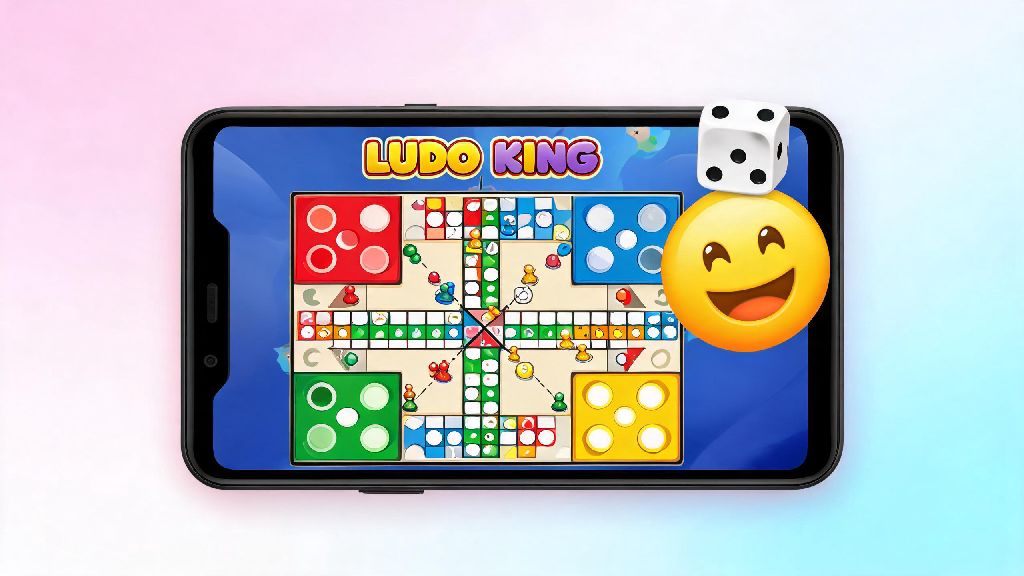
If you’ve ever been mid-Ludo King match, watching an opponent knock your almost-home token all the way back to the start, you know the first thing you want to do is send a playful frustrated reaction instead of typing out a message. Typing takes too long, and you’ll probably miss your next roll if you fumble with the keyboard. If you don’t know how to send emojis in Ludo King, you’re missing out on one of the game’s most fun social features that makes multiplayer matches feel way more personal. We’ve tested every version of the game across iOS, Android, and desktop to put together this no-fluff guide, so you can start sending reactions without pausing your game.
How to Send Emojis in Ludo King: Quick Steps for Mobile
Most people play Ludo King on their phones, so we’ll start with the mobile process that works for both iOS and Android devices. When you’re in an active match, look for the small smiley face icon on the right side of your screen, right below the dice button. Tap that icon to pull up the full emoji tray, which includes all standard and any exclusive emojis you’ve unlocked. Tap the emoji you want to send, and it will pop up on the screen for every player in the match to see right away. It only takes a couple of taps once you know how to send emojis in Ludo King, so you won’t have to pause your game for long to react. You can only send emojis during your turn or right after an opponent makes a move, so you don’t have to worry about missing your chance to react to a bad roll. You don’t need an internet connection to access your emoji tray if you’re playing offline with friends on the same device, but reactions won’t show up for remote players if your connection cuts out mid-match. If you’re still getting used to the controls, practice sending emojis in a private match first so you don’t accidentally tap the wrong button when you’re trying to roll the dice.
Hidden Emoji Features You Might Not Know About
Most players only use the basic default emojis, but Ludo King has a bunch of hidden emoji features that make reactions even more fun. A lot of players don’t realize you can unlock themed emojis tied to seasonal events, like Halloween ghost emojis in October or Christmas tree emojis in December, just by logging in daily during the event window. Premium Ludo King accounts get access to exclusive animated emojis that are larger, play short sound effects, and stay on the screen twice as long as standard static emojis. You don’t have to pay for emojis if you don’t want to, though, you can earn coin-exclusive emojis by winning ranked matches or completing daily challenges. Once you know how to send emojis in Ludo King, you can start experimenting with the different themed options to make your reactions stand out. The emojis aren’t just random reactions, either. Most regular Ludo King players use specific emojis to send unspoken messages during matches:
Sending Emojis in Ludo King Desktop Version
Plenty of players prefer Ludo King on desktop, either through the Facebook game version or the official Windows desktop app, and the emoji process is slightly different here. When you’re in an active desktop match, the smiley face emoji icon is at the bottom right corner of your screen, right next to the chat box. Click the icon to pull up the full emoji tray, then click the emoji you want to send to share it with all players. If you have the downloaded desktop app, you can also use keyboard shortcuts to send your most used emojis without opening the tray: just hold Ctrl and press the number key tied to the emoji you saved as a favorite. Emojis sync across all your devices if you log in with the same Facebook or Google account, so any seasonal or premium emojis you unlocked on your phone will be available on your desktop too, no extra purchase required. If you’ve been using the mobile version for a while and are new to desktop, you don’t have to re-learn how to send emojis in Ludo King, since the core functionality is almost identical. I’ve noticed desktop players tend to send way more emojis than mobile players, probably because they don’t have to tap a small screen while they’re trying to keep track of their tokens. The only downside of desktop emojis is that animated emojis don’t play sound effects on the Facebook browser version, so you’ll have to download the official app if you want the full experience.
Etiquette for Sending Emojis in Ludo King Matches
Emojis are supposed to make matches more fun, but it’s easy to cross a line if you don’t follow basic unspoken etiquette, especially in public lobbies with random players. First, don’t spam emojis over and over. Sending one reaction to a big move is fine, but sending 10 emojis in a row every time someone makes a move is annoying for everyone else in the lobby. Spamming emojis repeatedly can lead to a temporary mute from the game's anti-harassment system, so it’s best to keep your reactions to one or two per turn at most. Second, don’t send hostile or aggressive emojis to random players in public matches. It’s okay to tease friends you know in private lobbies, but sending non-stop angry emojis to a stranger just because they made a good play is rude, and you could get reported for harassment. If you’re new to multiplayer matches and still figuring out how to send emojis in Ludo King, stick to friendly emojis like the laughing face or party popper first until you get a feel for the lobby’s vibe. If someone is sending you toxic emojis, you don’t have to leave the match to avoid them. You can mute individual players’ emojis by tapping their profile icon and selecting the “mute reactions” option, so you can keep playing without seeing their messages or emojis. If you’re playing in a tournament lobby, it’s usually considered polite to turn off emojis entirely, since most players are there to compete and don’t want to be distracted by reactions.
Emojis are a small feature, but they make Ludo King feel way more social than most other mobile board games, especially when you’re playing with friends who live far away. Now that you know how to send emojis in Ludo King, you can start adding more personality to your matches, whether you’re celebrating a big win or playfully complaining about a bad roll. You don’t need to spend money on premium emojis to have fun, the default set is more than enough to get your point across. Next time someone knocks your best token back to the start, don’t get frustrated, send that silly angry emoji and roll for a 6 to get your revenge.