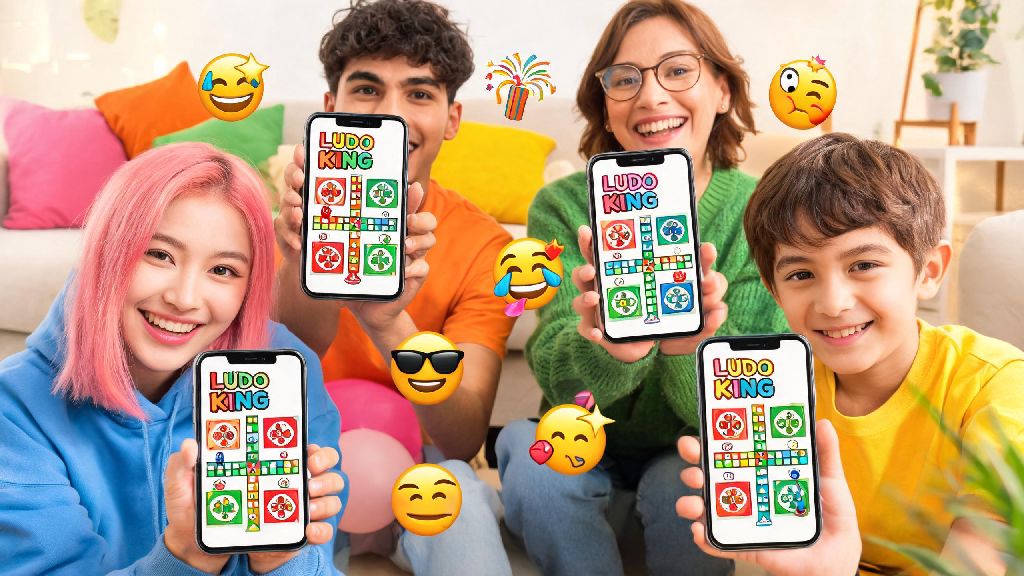
If you’ve played Ludo King in 2026, you’ve probably seen opponents and teammates send silly, playful, or even taunting emoticons mid-match without knowing how to access the feature yourself. Learning how to send emoticons in Ludo King doesn’t just make games more fun, it lets you connect with other players even when you don’t feel like typing in the chat. Most new players miss the small icon that unlocks the full emote menu, especially after the 2026 UI refresh that moved a few core controls to different parts of the screen. This guide will walk you through every step of using emotes, plus hidden features, etiquette, and fixes for common issues you might run into.
Step-by-Step: How to Send Emoticons in Ludo King (2026 Update)
The 2026 Ludo King update rearranged a few interface elements to make space for the new tournament stats bar, so even players who used emotes before 2026 might struggle to find the menu at first. The process is still incredibly simple once you know where to look, and it works the same across Android, iOS, and desktop versions of the game. First, make sure you’re in an active match, either multiplayer or against AI opponents – you can’t access the emote menu from the home screen or settings page. Next, look for the small yellow smiley face icon in the bottom right corner of your screen, right next to the chat bubble icon. Tap that icon to open the full emote menu, then tap any emote to send it instantly to all players in the match. If you want to send an emote to only one specific player, hold down the emote for two seconds and select the player’s name from the pop-up menu that appears.
You don’t have to wait for your turn to send emotes, either. You can send reactions at any point during the match, even when another player is rolling the dice or moving their token. Just don’t tap the icon while you’re dragging your token to move it, or you’ll accidentally cancel your move and waste your turn. Many new players make that mistake when they’re excited to send a reaction right after a lucky roll.
Hidden Emoticon Features You Missed in the 2026 Ludo King Patch
Ludo King’s 2026 spring patch added over 20 new emotes and several hidden shortcuts that most casual players haven’t discovered yet. These features are designed to make sending reactions faster, so you don’t have to pause your game to navigate the full menu mid-turn. For example, double tapping your own token right after you roll a six will automatically send the “Lucky Roll” dance emote to all players without you having to open the menu at all. You can also unlock exclusive custom emotes by completing daily challenges, logging in for 7 consecutive days, or placing in the top 3 of official community tournaments. The most popular emotes among players so far in 2026 are:
Premium Ludo King subscribers also get access to animated emotes that play short sound effects when sent, but free users don’t have to miss out – all 12 core emotes, plus 3 new rotating emotes every month, are available to every player for no extra cost. You can even favorite up to 5 emotes to pin them to the top of your menu, so you don’t have to scroll to find the ones you use most often. Just tap the small heart icon on any emote in the menu to add it to your favorites list.
Emoticon Etiquette for 2026 Ludo King Multiplayer Matches
Sending the wrong emote at the wrong time can rub other players the wrong way, especially in ranked matches where people are playing to win. Ludo King added a new emote mute feature in 2026 that lets players block all emotes from specific users, so spamming rude or annoying emotes will just mean no one sees them at all. Never spam 10+ emotes in a row during a ranked tournament match – this counts as disruptive behavior and can lead to temporary restrictions on your account if multiple players report you. If you’re playing with close friends or family, playful teasing emotes are totally fine and make the game feel more like a casual in-person hangout. But if you’re playing with random strangers, stick to neutral or friendly emotes unless the other person starts sending playful ones first.
It’s also good practice to send the “Oops Sorry” emote if you knock a random player’s token back to start, even if it’s a totally valid move. Small, polite gestures like that make the whole community feel more welcoming for new players. You should also avoid sending sarcastic emotes like the “Laughing Cry” face after someone gets a bad roll, because it’s hard to tell tone over text and many people will take it as an insult. If you don’t want to see emotes from other players at all, you can turn off all incoming emotes in the social settings menu, which is a popular option for people who play ranked matches to focus without distractions.
Troubleshooting Common Emoticon Issues in 2026 Ludo King
Even if you follow all the steps correctly, you might run into issues with emotes not loading or not sending properly, especially if you haven’t updated your app in a few months. The most common fix for almost all emote issues is downloading the latest 2026 version of Ludo King from the official Google Play or Apple App Store. Modded or hacked versions of the game almost always break the emote and chat features, and they also put your account at risk of being permanently banned. If your emotes are loading but won’t send, check your internet connection – emotes require a stable Wi-Fi or mobile data connection to send to other players in real time.
If you still can’t access the emote menu, check your account settings to make sure you haven’t accidentally turned off emotes in the “Social Controls” menu. Some players turn off emotes by mistake when they’re trying to turn off chat notifications for ranked matches. If you have restricted access to certain emotes, it’s probably because you received multiple reports for toxic behavior in the last 30 days. Most restrictions lift automatically after 7 days as long as you don’t get any new reports in that time. If you still can’t figure out how to send emoticons in Ludo King after trying these fixes, you can reach out to Ludo King’s 2026 customer support team through the in-app help center for personalized assistance.
Learning how to send emoticons in Ludo King is a small, simple skill that makes every match feel more engaging and social, whether you’re playing with old friends or new people from across the world. The 2026 updates to the emote system make it easier than ever to customize your reactions and send quick messages without typing, as long as you follow basic community etiquette to avoid annoying other players. Next time you load up a match, try out some of the new 2026 emotes, and don’t forget to be polite if you knock another player’s token off the board.